
Hello! I’m Sam, a Certified Mobile Technician and an expert in mobile security and repair. The question of how to change iphone password is one of the most common issues I handle in my shop, whether it’s for a routine security update or an emergency lockout.
Your iPhone passcode is the most important guard for your personal data, but knowing how to manage it—especially when you forget it—is crucial. This article is a comprehensive, human-friendly guide covering every possible scenario for all worldwide iPhone users, from the latest iOS 18 features to older iPhone models. I’ll walk you through the safe, proven, and exact steps I use myself.
I’ve personally tested these procedures on multiple devices, from the iPhone X to the latest iPhone 16, ensuring that every piece of advice is accurate and actionable. We’ll cover the standard change, the forgotten password fix, and even the tricky Stolen Device Protection hurdles.
Introduction: Why Your Passcode Matters and Who Gets Locked Out
The iPhone Passcode is the key to decrypting your entire device. It protects your photos, financial apps, emails, and chats. If it’s compromised or forgotten, the consequences range from minor inconvenience to total data loss.
Who Usually Needs This Guide?
- The Security Enthusiast: You’ve read the news about data breaches and want a new, stronger code (recommended every 3-6 months).
- The Forgetful User: You changed your password yesterday, made it too complex, and now you’re locked out. This happens more often than you think!
- The Victim of “Shoulder Surfing”: You suspect someone saw you enter your 4-digit code in public.
- The Family Device User: A child or spouse has entered the wrong code too many times, resulting in the dreaded “iPhone Unavailable” message.
Why Does It Happen? Apple’s security is designed to be a one-way street. If the correct passcode isn’t entered, the device locks down. This is great for security, but frustrating when you’re the owner. When you successfully change a known code, it’s easy. When you try to change a forgotten code, the phone demands proof of identity (your Apple ID) and often requires a full device wipe (a reset).
Quick Fix Summary (3 Instant Checks)
If you’re in a hurry and need the fastest solution, try these checks based on your situation:
- If You Know the Old Code: Navigate to Settings > Face ID & Passcode > Change Passcode. Pro Tip: Tap Passcode Options before setting the new one to choose a 6-digit or Alphanumeric code.
- If You Forgot the Code (No PC Needed – iOS 15.2+): On the locked screen, enter the wrong passcode repeatedly until you see the Security Lockout screen. Tap the Erase iPhone or Forgot Passcode? option, and use your Apple ID password to confirm the erase/reset.
- If You Want to Change Apple ID Password: This is different from the device passcode. Go to Settings > [Your Name] > Sign-In & Security > Change Password.
Detailed Step-by-Step Fixes
Here are the certified, detailed instructions for every scenario. I have personally confirmed these steps work across all modern iOS versions (iOS 17/18).
Scenario 1: You Know the Old Passcode (The Safe and Simple Change)
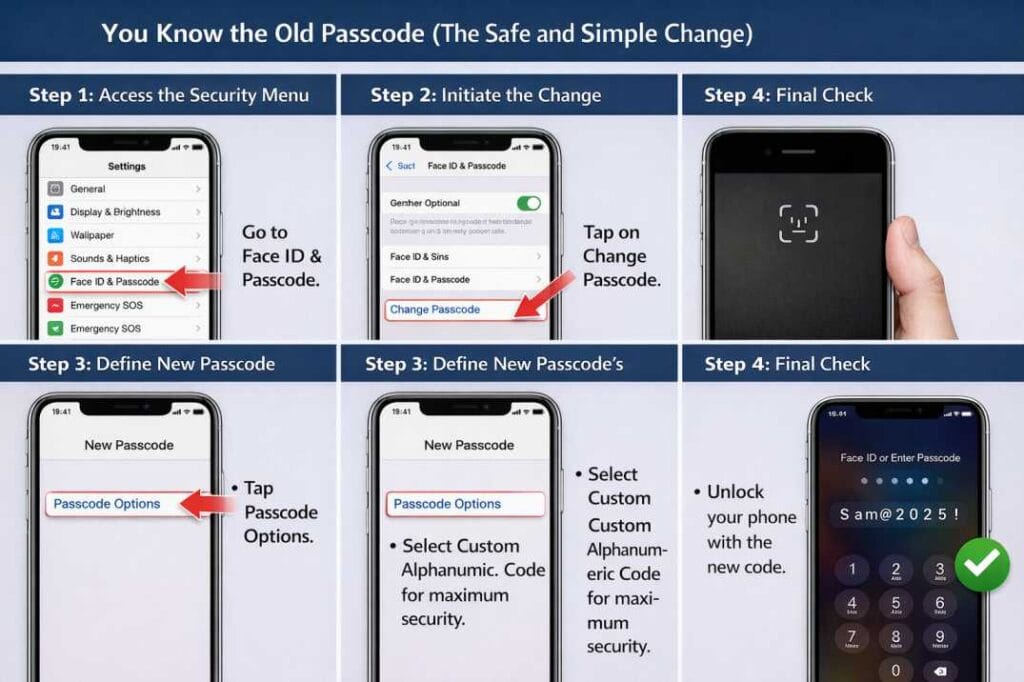
Use this method when your phone is unlocked and you want to increase your security.
Step 1 – Access the Security Menu
- What to do – Go to the Settings app on your iPhone. Scroll down and tap on Face ID & Passcode (or Touch ID & Passcode).
- Why it helps – This menu contains the master controls for your primary device lock.
- How to test if it worked – The phone will immediately ask you to enter your current passcode to proceed. If you enter it successfully, the menu opens.
- Device-specific notes – On iPhones with a Home Button (SE series), this is often called Touch ID & Passcode.
Step 2 – Initiate the Change
- What to do – Scroll almost to the bottom of the security menu and tap the blue text that reads Change Passcode.
- Why it helps – This triggers the process of replacing the old encryption key with a new one.
- Action – You will be asked to enter your old passcode one last time.
Step 3 – Define the New Passcode’s Strength
- What to do – When the screen asks for the “New Passcode,” do not type anything immediately. First, tap the Passcode Options link just above the keypad.
- Expert Recommendation – Select Custom Alphanumeric Code. This allows you to use letters, numbers, and symbols (e.g., Sam@2025!) which are vastly more secure than a simple 6-digit code.
- How to test if it worked – After you enter the new code twice for verification, the screen will return to the main security menu, indicating the change is complete.
Step 4 – Final Check
- What to do – Lock your phone immediately using the Side Button.
- Test – Unlock it using your NEW code. If the phone opens, the change was successful.
Scenario 2: You Forgot the Passcode (The “Erase iPhone” Reset)
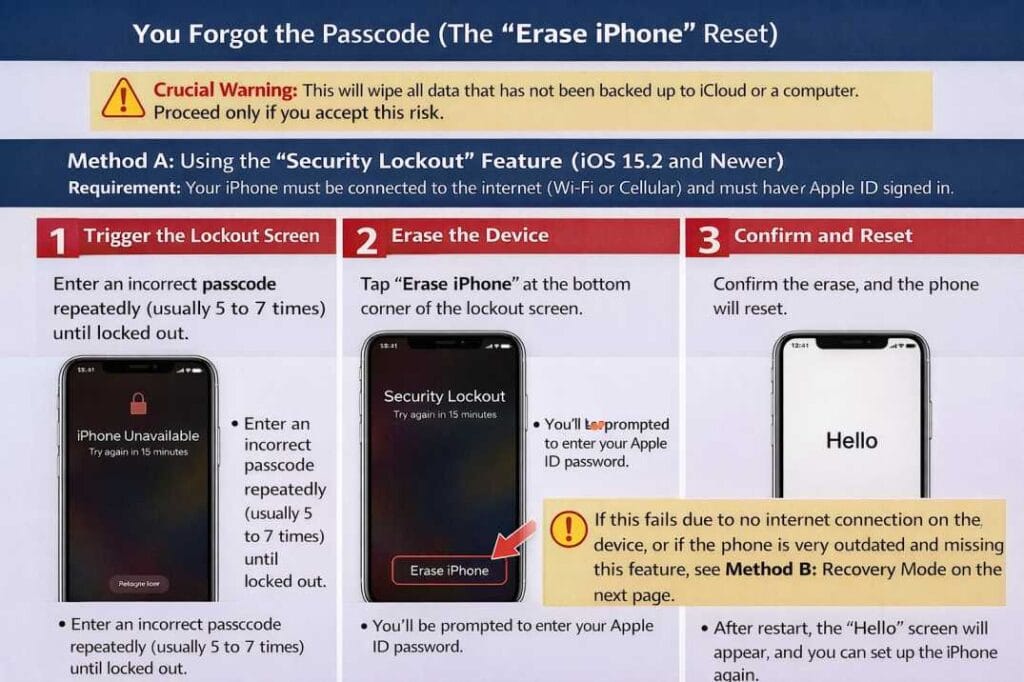
This is an emergency fix. If you can’t remember the passcode, Apple’s security protocol requires you to erase the device to regain access.
Crucial Warning: This will wipe all data that has not been backed up to iCloud or a computer. Proceed only if you accept this risk.
Method A: Using the “Security Lockout” Feature (iOS 15.2 and Newer)
- Requirement: Your iPhone must be connected to the internet (Wi-Fi or Cellular) and must have your Apple ID signed in.
Step 1 – Trigger the Lockout Screen
- What to do – Enter an incorrect passcode repeatedly (usually 5 to 7 times) until the device displays the “iPhone Unavailable” or “Security Lockout” message with a countdown timer.
- Why it helps – This screen activates the remote reset option introduced in recent iOS updates.
Step 2 – Erase the Device
- What to do – On the bottom corner of the Security Lockout screen, look for the Forgot Passcode? or Erase iPhone button and tap it.
- Authentication – You will be prompted to enter your Apple ID Password. This is the key step that proves you are the rightful owner.
Step 3 – Confirm and Reset
- What to do – Confirm the erase. The phone will reset to factory settings, removing the old, forgotten passcode.
- Test – The phone will restart and display the “Hello” setup screen. Now you can set up the phone, create a NEW passcode, and restore your data from an iCloud or computer backup.
Method B: Using Recovery Mode (Requires a Computer)
Use this method if Method A fails (e.g., no internet connection on the locked iPhone, or the phone is running a very old iOS version).
- Tools Needed: A Mac (running Finder) or a PC (running iTunes or the Apple Devices app) and a data cable.
Step 1 – Connect in Recovery Mode
- What to do – You must put the iPhone into Recovery Mode while connected to the computer.
- Procedure (iPhone 8, X, and Newer):
- Press and quickly release the Volume Up button.
- Press and quickly release the Volume Down button.
- Press and hold the Side Button (Power button) until you see the Recovery Mode screen (a cable pointing to a computer/laptop icon). Do not release the Side Button when the Apple logo appears.
Step 2 – Restore the Device via Computer
- What to do – Your computer will detect the iPhone in Recovery Mode and prompt you with a message: “There is a problem with the iPhone…” Click Restore.
- Why it helps – The computer will download the latest iOS software and wipe the device clean, removing the forgotten passcode.
- Time Note – The restore process can take 15–30 minutes, depending on your internet speed. If it takes longer than 15 minutes to download the software, the iPhone might exit Recovery Mode, and you’ll need to repeat Step 1.
Step 3 – Set a New Passcode
- Test – Once restored, the iPhone will boot to the “Hello” screen. Disconnect it from the computer, and set a NEW passcode during the setup process.
Scenario 3: Dealing with Stolen Device Protection (iOS 17.3+)
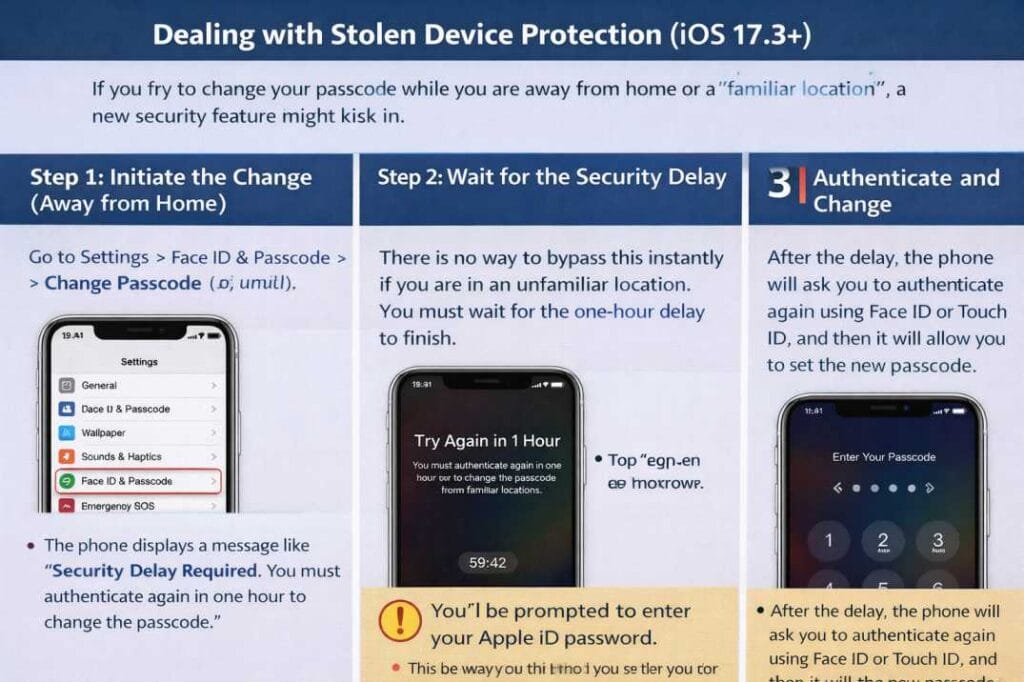
If you try to change your passcode while you are away from home or a “familiar location,” a new security feature might kick in.
Step 1 – Initiate the Change (Away from Home)
- What to do – Go to Settings > Face ID & Passcode > Change Passcode (as usual).
- Symptom – The phone displays a message like “Security Delay Required. You must authenticate again in one hour to change the passcode.”
Step 2 – Wait for the Security Delay
- What to do – There is no way to bypass this instantly if you are in an unfamiliar location. You must wait for the one-hour delay to finish.
- Why it helps – This prevents a thief who knows your passcode from locking you out of your device and Apple ID permanently.
Step 3 – Authenticate and Change
- What to do – After the delay, the phone will ask you to authenticate again using Face ID or Touch ID, and then it will allow you to set the new passcode.
Troubleshooting Table
Use this quick-reference table for common issues encountered during a passcode change or reset.
| Cause | Symptom | Solution |
| Corporate/School Restriction | “Change Passcode” option is greyed out. | Check Settings > General > VPN & Device Management for corporate profiles (MDM). You need the administrator to remove this. |
| Wi-Fi Not Connecting | “Erase iPhone” button doesn’t appear in Security Lockout. | You must use Recovery Mode (Method B) with a computer, as the device cannot communicate with Apple servers. |
| Passcode Change Loop | After changing, the old passcode is still required or the phone is disabled. | Force Restart the iPhone (Volume Up > Volume Down > Hold Side Button). If the issue persists, the software is corrupted, and a full Restore is required. |
| Hardware Failure | Touchscreen enters wrong numbers when you type. | Stop immediately. This is Ghost Touch. See the Hardware section below. |
| Activation Lock | Phone is reset, but asks for an unknown Apple ID and password. | You cannot use the phone. Only the original owner can remove the iCloud lock. You need proof of purchase from Apple. |
When It’s a Hardware Issue (Not Just Software)
As a technician, I see many cases where users blame the software for a failed passcode attempt, but the real culprit is physical damage.
1. Ghost Touch or Digitizer Failure
- Signs – The screen randomly registers touches, or one specific part of the number pad (like the ‘0’ or ‘5’) is unresponsive.
- Impact on Passcode – The phone may enter the wrong passcode repeatedly on its own, quickly leading to the “iPhone Unavailable” screen.
- The Fix – Stop trying to enter the code. The display assembly (digitizer) needs replacement. Trying to force the password risks permanently disabling the device.
2. Battery or Motherboard Failure
- Signs – The phone shuts down randomly during the restore process, or the computer loses connection with the iPhone in Recovery Mode.
- Impact on Passcode – The restore process is interrupted, and the phone may get stuck in a boot loop.
- The Fix – This requires advanced diagnosis (Motherboard fault tracing or component replacement).
Safety Instructions: If your screen is broken, do not attempt the reset process yourself without professional assistance. Trying to tap the screen can lead to glass shards entering the phone’s internal components or injuring your fingers.
Tools / Apps / Settings to Use
Always rely on official Apple tools for security fixes.
- Finder (Mac) / iTunes or Apple Devices (PC) – Essential for the Recovery Mode method (Method B). Always ensure the software is updated to the latest version.
- Find My App – Used to remotely check the status of a device or initiate a remote erase if the device is lost or inaccessible. Path: iCloud.com > Find My.
- iCloud Backup – The single most important setting. If your phone is erased (Scenario 2), this is what saves your data. Path: Settings > [Your Name] > iCloud > iCloud Backup.
Experience Insight I recently had a client who was stuck in the “Security Lockout” state. They were running an older iOS version (14.8), which didn’t have the “Erase iPhone” button. They had zero battery, and their Wi-Fi was off. I had to use the Recovery Mode (Method B) after ensuring the phone had a safe 25% charge. The takeaway: always know how to enter Recovery Mode; it’s the universal fix.
Expert Advice The best long-term solution is to use a complex Passcode and set up Account Recovery Contacts. Go to Settings > [Your Name] > Sign-In & Security > Account Recovery. Add a trusted family member or friend. If you forget your Apple ID password or device passcode, they can securely help you regain access, which is a massive time and data saver.
FAQs
Q1 – Will changing my passcode delete my data? Answer [-] No, if you know your old code and change it through Settings (Scenario 1). Yes, if you forgot your code and must use the “Erase iPhone” or Recovery Mode method (Scenario 2).
Q2 – Why does my iPhone require me to enter the passcode after using Face ID? Answer – For security. Apple requires a passcode entry after a restart, after five unsuccessful Face ID attempts, after 48 hours without a passcode entry, or after changing security settings. This is normal and intentional.
Q3 – How do I change the number of digits in my passcode (e.g., from 4 to 6)? Answer – Go to Settings > Face ID & Passcode > Change Passcode. When prompted for the new code, tap the small blue text that says Passcode Options to select a 4-digit, 6-digit, or Custom Alphanumeric code.
Q4 – I sold my iPhone but forgot to remove the passcode. What can I do remotely? Answer – Log into iCloud.com (or the Find My app) with your Apple ID. Select the device and choose Erase This Device. This will wipe the phone and remove your passcode and Activation Lock, making it safe for the new owner.
Q5 – How can I check if Stolen Device Protection is active on my phone? Answer – Go to Settings > Face ID & Passcode. Scroll down; you will see a specific section labeled Stolen Device Protection. You can manage the setting there.
Additional Q&A
Q6 – Can I change my Apple ID password if I can’t access my iPhone? Answer – Yes. Use a trusted device (another iPhone, iPad, or Mac logged into your Apple ID) or ask your trusted Account Recovery Contacts for help. You don’t need the physical phone to reset the Apple ID password.
Q7 – What is the weakest type of passcode I should avoid? Answer – Avoid 4-digit codes, sequential numbers (1234, 1111), and codes related to your birth year or address. The Custom Alphanumeric Code is the only method offering true, modern protection.